
Quick answer
Install StartAllBack only after identifying your Windows 11 build, checking the installer source, and saving your current desktop settings. Begin with one interface change, then test the Start menu, taskbar, and Explorer before customizing anything else.
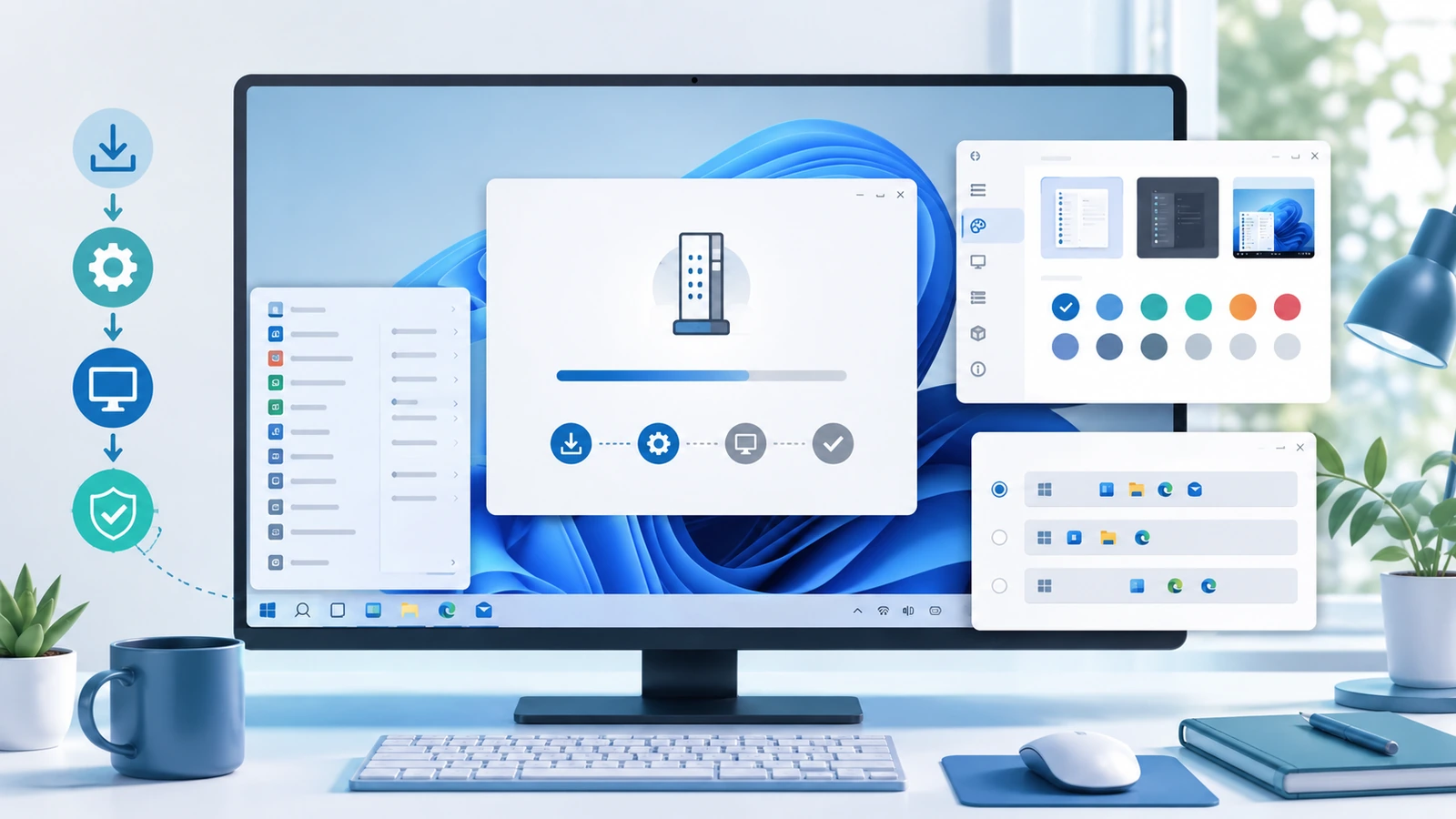
What matters for this task
The installation itself is only one part of a reliable setup. A clean baseline makes later problems much easier to isolate: you can distinguish an installer issue from a theme choice or an existing shell extension. Keep a copy of important documents separately from any Windows restore point.
Steps to follow
- Press Win + R, run winver, and record the version and OS build. Check the publisher release notes against that environment.
- Download the Windows installer, inspect its digital signature, and scan it with Windows Security. Stop if the file source or signature is unexpected.
- Close open work and run the installer. Choose only an installation scope that you are authorized to use; do not bypass a work-computer restriction.
- Keep the initial configuration simple. Open a folder, launch an app from Start, switch between two windows, and sign out once before adding visual changes.
Verify the result
A successful installation means more than seeing a new taskbar. Confirm that your normal apps open, taskbar buttons follow running windows, and the same configuration returns after signing in.
Limits and rollback
Undo the last changed setting first. If the shell remains unstable, remove StartAllBack through Installed apps or Programs and Features, then restart and retest Windows without it.
Questions about this task
Should I install several shell tools together?
Establish a baseline with one tool. Overlapping taskbar or menu modifications make the cause of a failure harder to identify.
Must I change every setting after installation?
No. Change only the behavior you need, record the setting, and verify it before proceeding.
Primary sources
Publisher claims and Windows procedures are linked below. The comparison and diagnostic steps are editorial guidance, not a claim of hands-on Windows testing.
Windows 11 download · Review compatibility and the publisher’s license terms before installing.
Download for Windows 11 File source and installation notes